
Mac Client Installation Tutorial
Due to Apple's security restrictions on non-App Store software, you may see a "file is damaged" warning during installation.
Please follow the steps below carefully to ensure the app works properly.
Step 1: Install Correctly
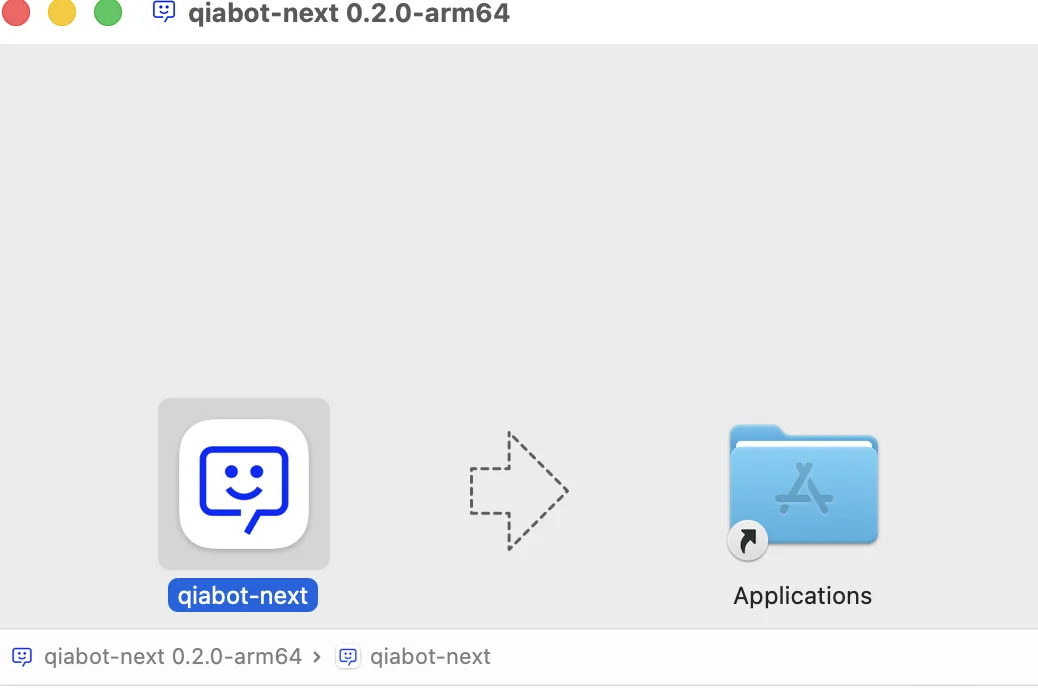
- After downloading and opening the installer, you will see the following window:
- Hold and drag the qiabot-next icon on the left to the Applications folder icon on the right, then release.
- Once the copy is complete, click Applications to open the folder and confirm that qiabot-next is inside.
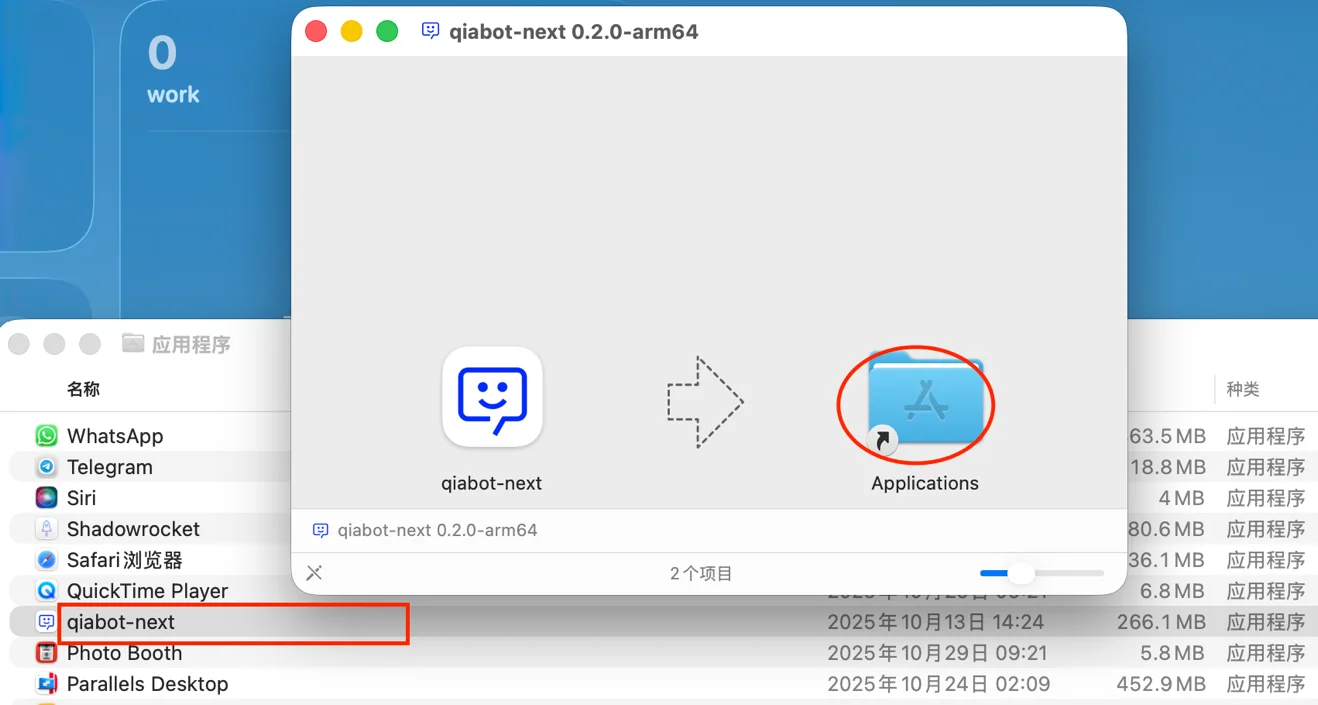
⚠️ Important: You must drag it into the folder! Do not double-click to open it directly, otherwise the fix commands below will not work.**
Step 2: Terminal Fix
After installation, if double-clicking the app shows a "damaged" error, do not click "Eject Disk Image" or "Move to Trash" — just click "*Cancel*".

Then follow these steps:
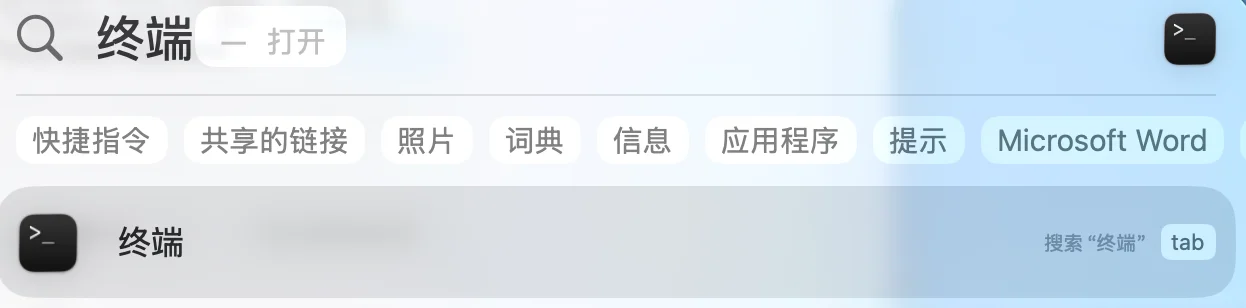
- Open Terminal: press Command (⌘) + Space on your keyboard. Type Terminal, then press Enter to open it.
- Copy and run the fix command (copy it directly, do not type it manually):
Copy the following line in full:
sudo xattr -cr /Applications/qiabot-next.app && sudo spctl --master-disable
- Paste the command into the Terminal window, then press Enter.
- Enter your password: the screen will show Password: or a key icon.

Enter your computer login password. After typing the password, press Enter to run the command.
⚠️ Note: Nothing will appear on screen while typing the password (no asterisks or cursor movement). This is normal!
Step 3: All Done
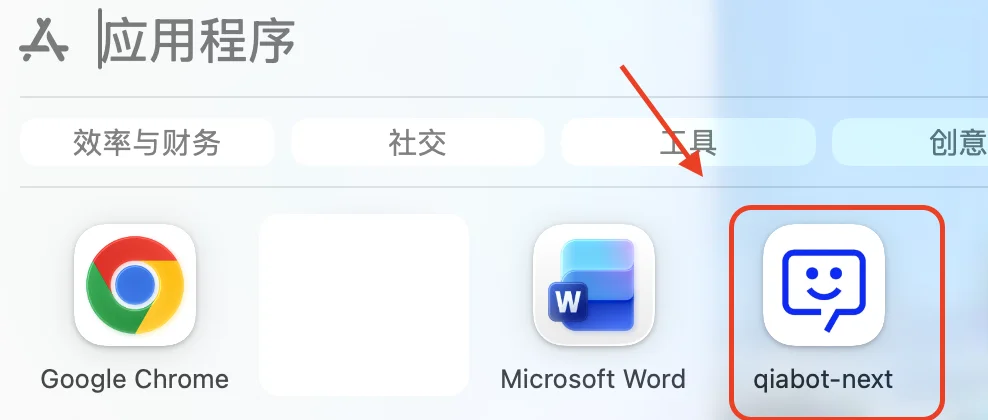
Now, go to the Applications folder, find qiabot-next, and double-click to open it!
[Backup Plan] If the app crashes on launch, try this:
On computers with *M1/M2/M3* chips, in rare cases the app may crash after completing the steps above:
- Run this "force signing" command in Terminal:
sudo codesign --force --deep --sign - /Applications/qiabot-next.app
- You will also need to enter your password and press Enter to run the command.
- After the command finishes, close the Terminal window and reopen the qiabot client.
[If the software still won't open after running the commands], try this:
- Open System Settings -> Privacy & Security.
- Scroll to the bottom, and you will see a small message saying "qiabot-next was blocked...".
- Click the Open Anyway button next to it.
- Enter your password to confirm.