
Basics - Auto Messages
Here you can configure welcome/closing messages and exception scenario prompts (no response, no available agents). This ensures visitors receive appropriate replies even when agents are offline.
- Welcome Message Settings: An automatic welcome message sent when a visitor enters the chat page, enhancing the visitor experience.
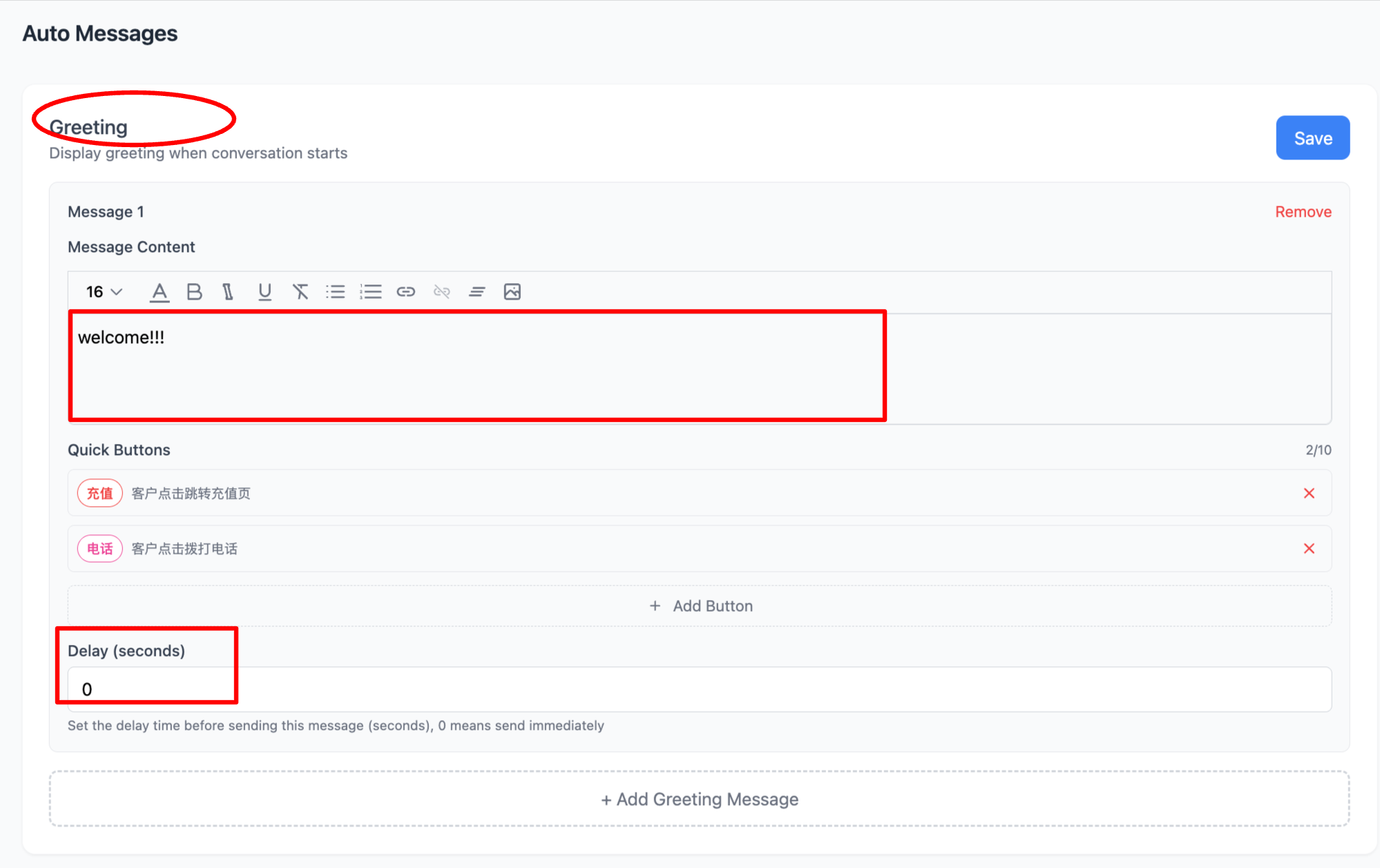
- In addition to adding message content, you can also add quick action buttons with different functions, such as "Navigate to Page" or "Make a Call", greatly improving agent efficiency.
- You can also set a delay time here, choosing whether to send immediately or with a delay. It is recommended to select immediate sending so visitors feel they are being served right away.
2.Ending Message Settings: Sent when an agent manually closes the conversation or when the system automatically closes it.
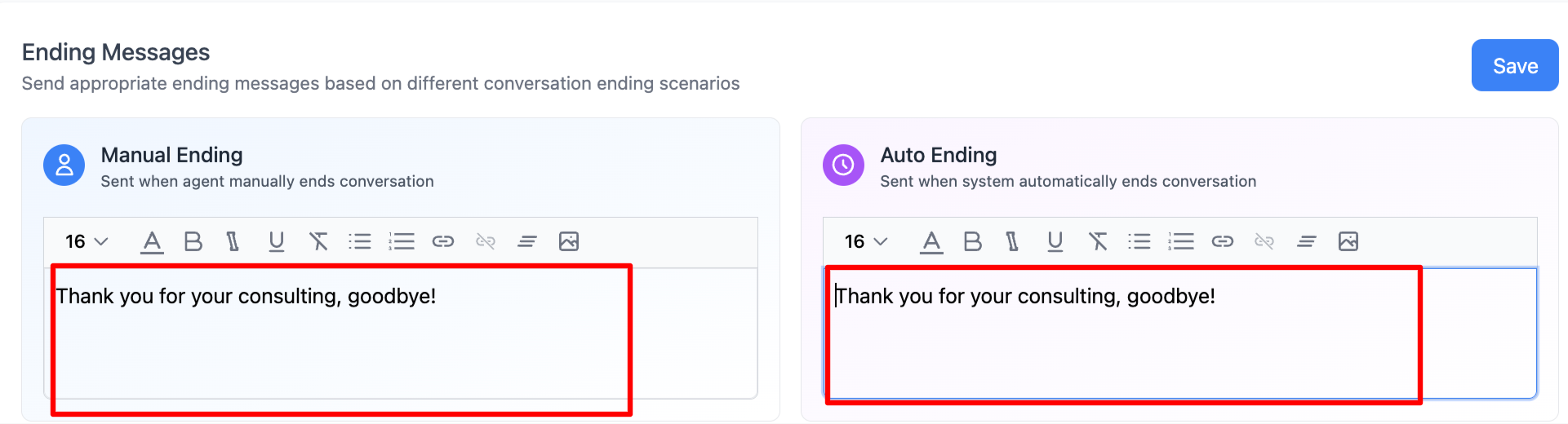
You can choose from multiple formats to send messages: text, images, links, etc., improving agent efficiency and visitor experience.
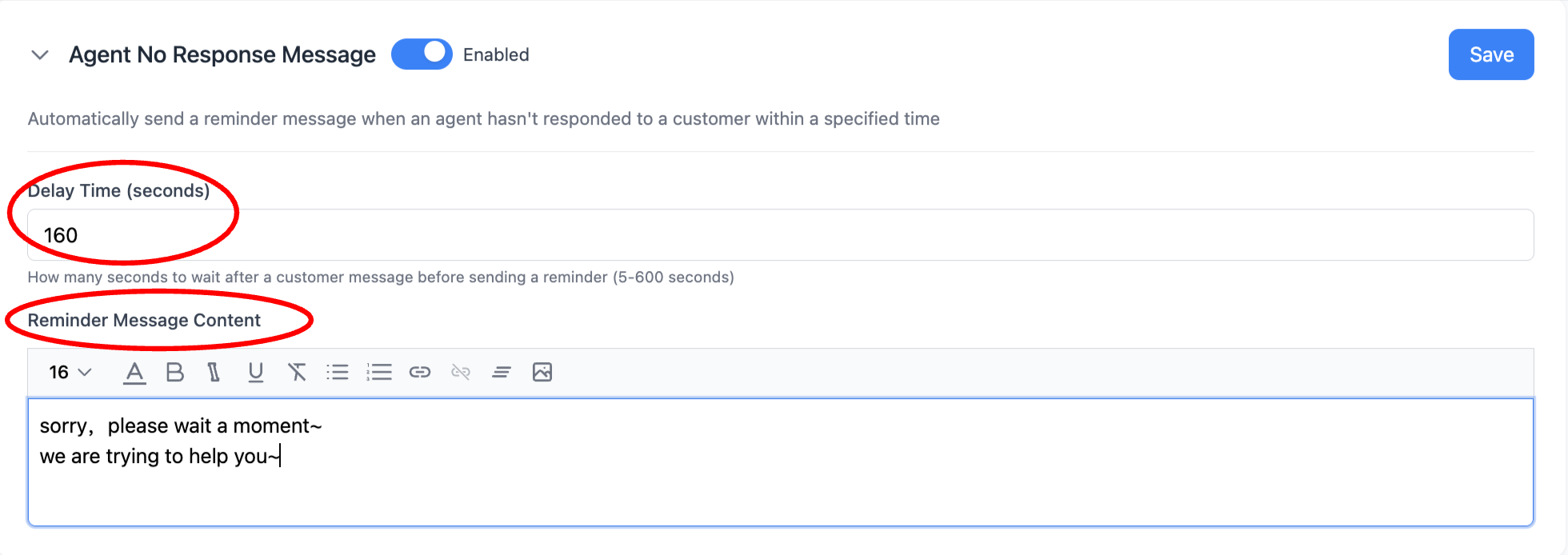
3.Agent No-Response Message: When a visitor sends a message and the agent does not reply within the set time, this message is automatically sent. Used to reassure visitors and improve their experience.
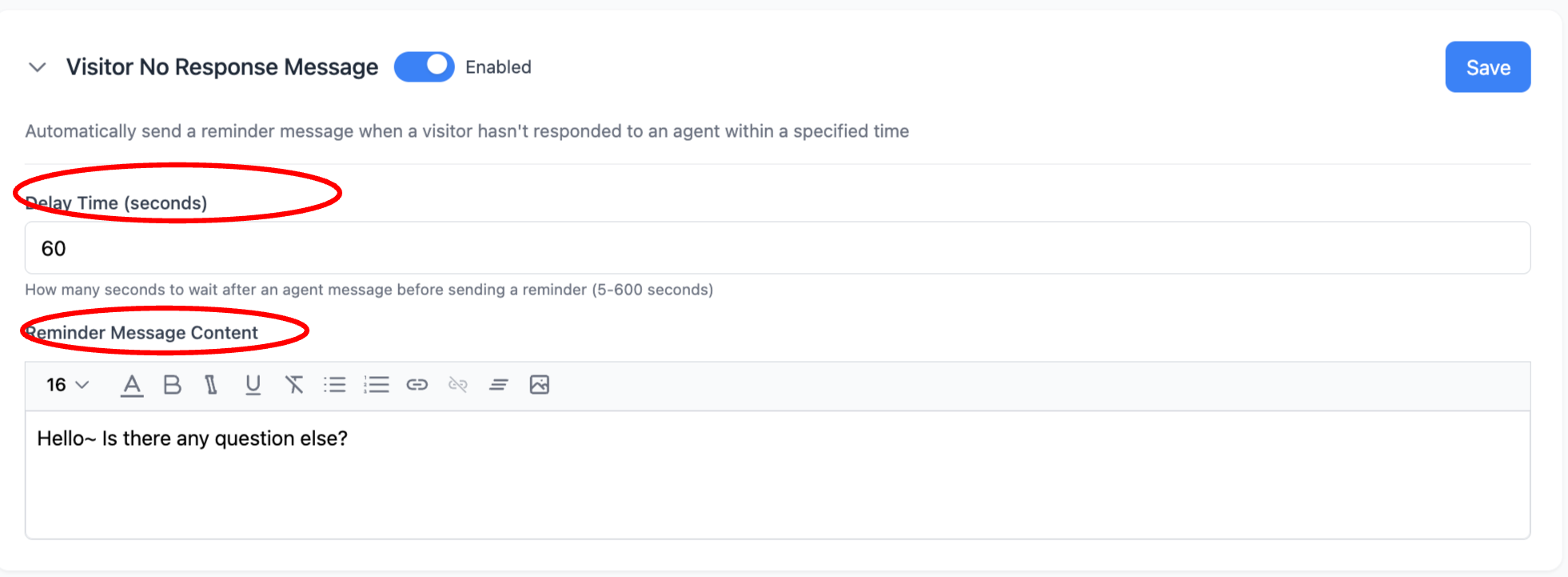
4.Visitor No-Response Message (sent to visitors): When an agent sends a message and the visitor does not reply within the set time, this message is automatically sent. It automatically encourages visitors to respond, reducing agent workload.
5.No Available Agent Prompt Message: When a visitor enters the chat but the channel agents are not online (offline or in invisible mode), the system automatically sends a prompt to the visitor. This reassures visitors and improves satisfaction.
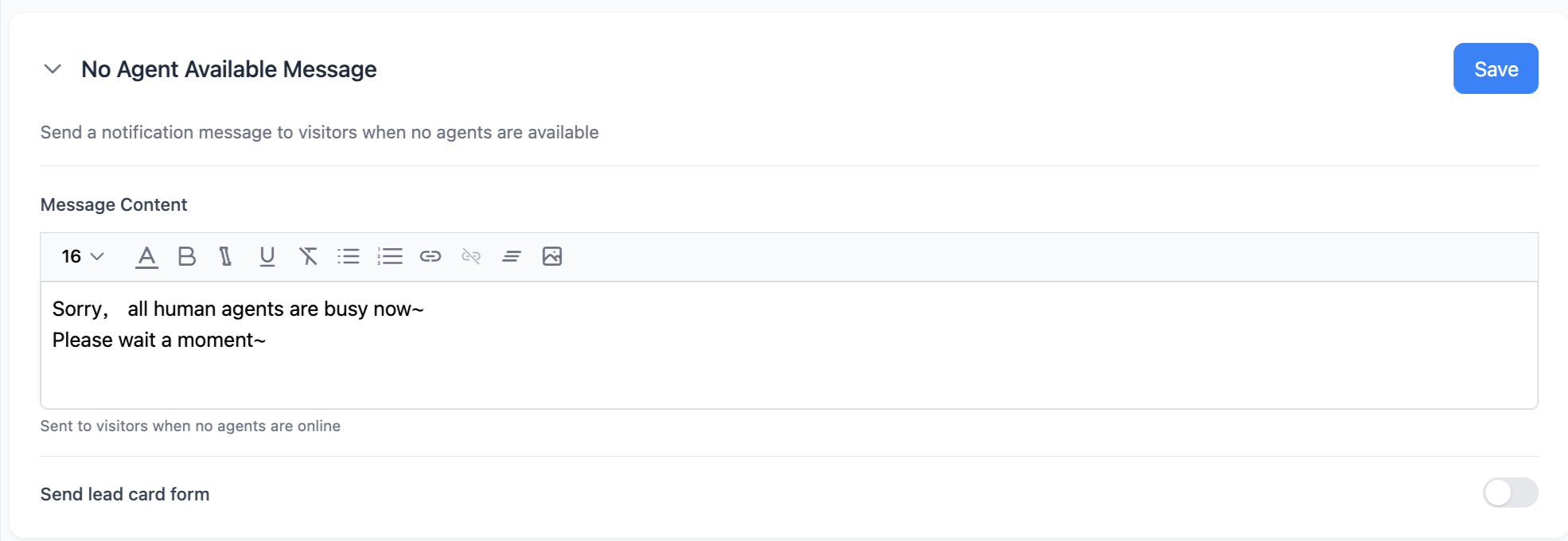
You can also fill in agent working hours here. When agents are offline, the system will automatically send the working hours information to visitors.
Congratulations! You have completed the "Auto Messages" tutorial. Now you can better configure system auto-replies to provide visitors with appropriate responses even when agents are busy or offline, improving visitor experience and agent efficiency!