
Advanced Features - Quick Buttons
In addition to common quick replies, you can set up quick buttons with various one-click options, allowing visitors to express their needs by tapping buttons instead of typing. This enables more precise routing, analytics, and automated processing. QIABOT's quick buttons support sending multiple content types, taking your customer service efficiency to the next level!
- How to Add Quick Buttons in the Admin Panel
- Click "Settings" at the bottom of the left navigation bar, then select "Quick Buttons". You can then start adding quick buttons.
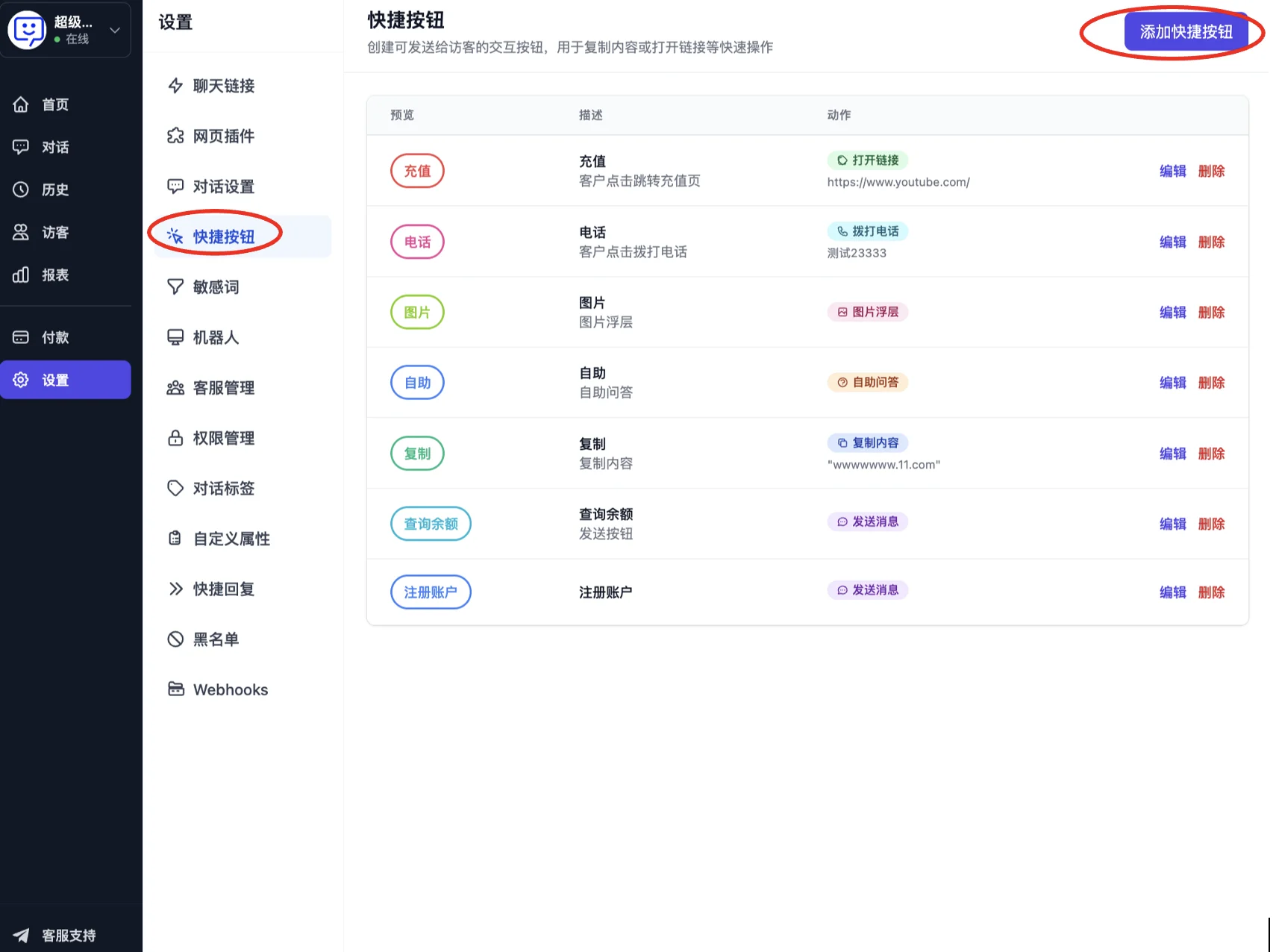
- On the add button page, you can enter the button name, description, choose a color, style, and action type - the effect you want visitors to see when they click the button.
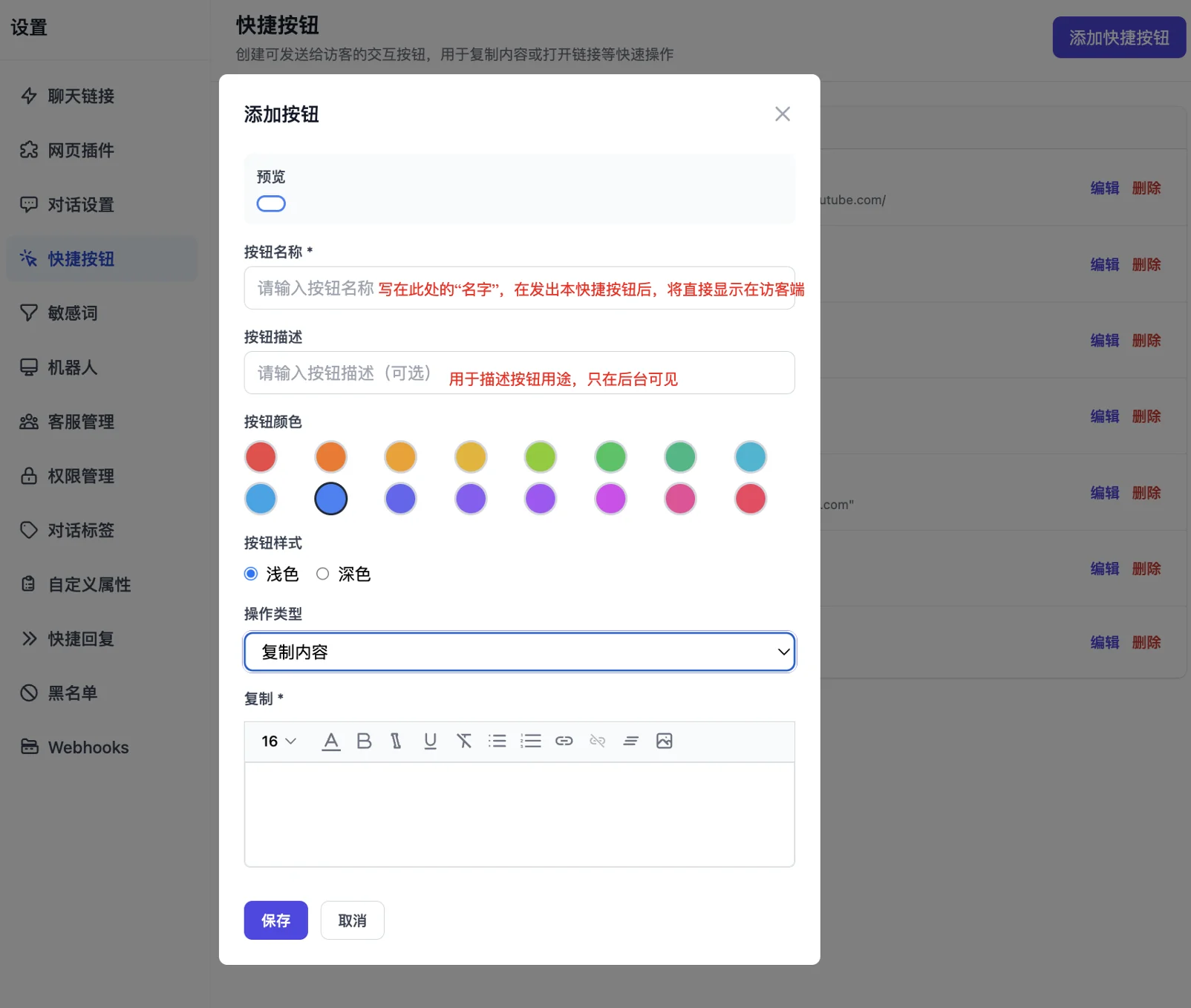
- There are several action types:
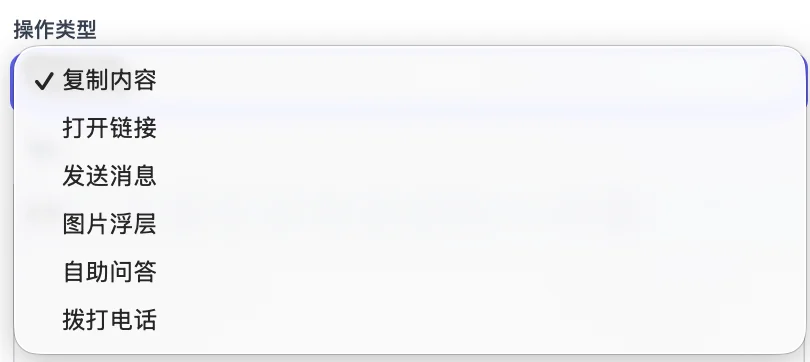
- Copy Content: When the visitor clicks this button, the content you set will be copied to their clipboard with one click.
Use case: *Copy the customer service WeChat ID, company email, bank account information, etc., so users don't have to manually select and copy.*
- Open Link: When the visitor clicks this button, they will be redirected to the link you set.
Use case: *Redirect to a campaign page, such as "View Details" or "Place Order", directly opening your landing page or payment page.*
- Send Message: When the visitor clicks this button, the "button name" will be sent as a message.
Use case: *Quick feedback, such as "Issue Resolved", "Still Have Questions", "Need Human Agent", allowing users to express their current status with one click.*
- Image Overlay: When the visitor clicks this button, the image you set will be displayed.
Use case: *Product image enlargement - place a "View Full Image" button in the conversation to display a large product image or screenshot.*
- Self-Service FAQ: When the visitor clicks this button, they will receive the auto-reply content you set.
Use case: *Common question entry points, such as "Account Issues", "Payment Issues", "Invoice Related" - clicking will show preset answers that users can browse on their own.*
- Make Phone Call: When the visitor clicks this button, the phone number you set will be dialed directly.
Use case: *One-click phone consultation - a button named "Call Customer Service Hotline" that initiates a call to your configured number when tapped on mobile.*
- How to Add Quick Buttons in the Agent Workbench?
Click "Conversations" in the left navigation bar, open a conversation, and click the "Send Quick Button" icon above the reply box to select the desired button.
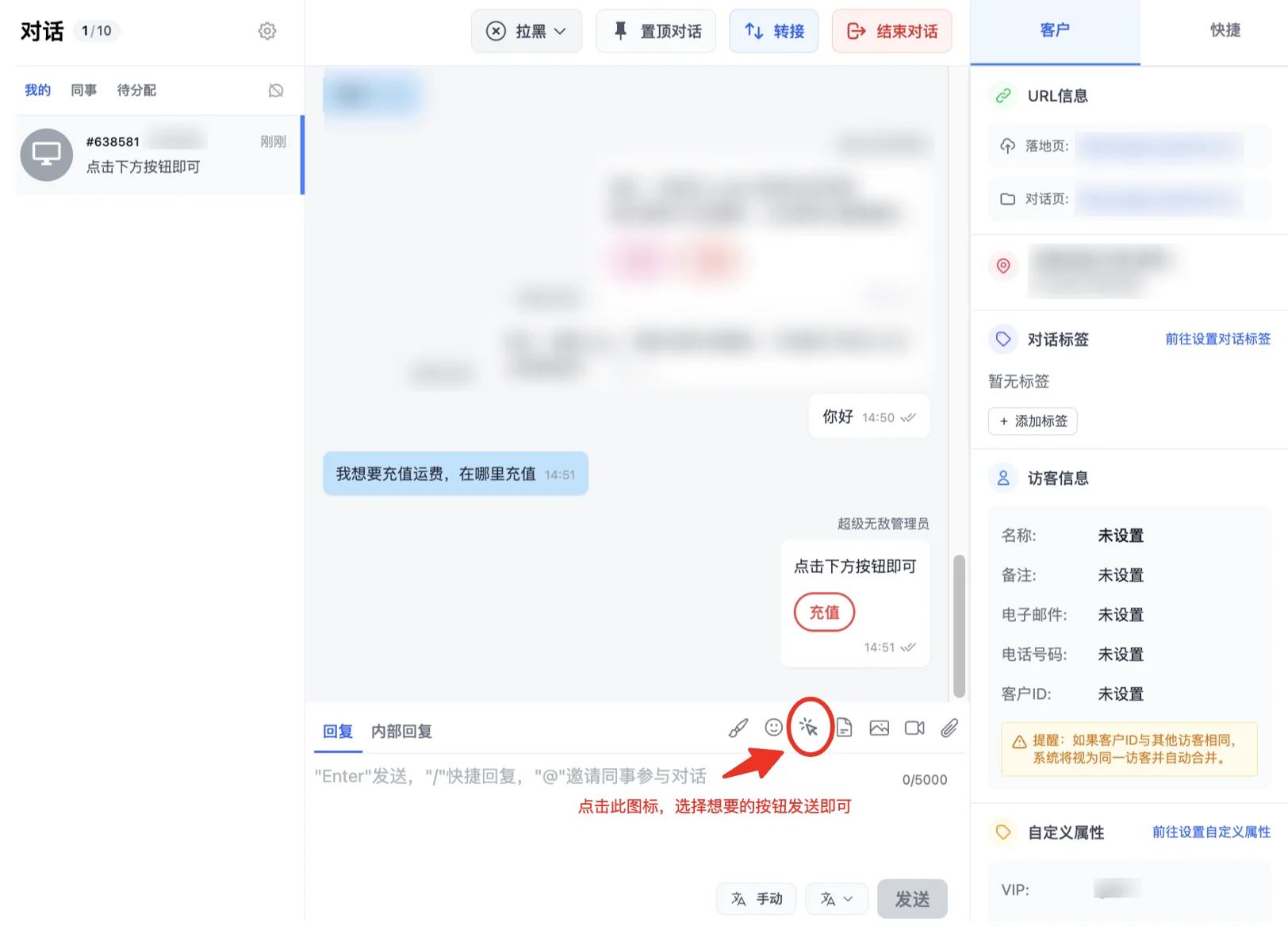
After selecting a quick button and editing the message, send the reply. You'll see that the sent content includes a button for the visitor to click.
Congratulations! You've completed the "Quick Buttons" feature module!
By setting up quick buttons, you can maximize time savings for agent replies and effectively improve work efficiency.
Next step: Visit other Advanced Features to explore how to further unlock QIABOT's potential and make the most of every feature to enhance your workflow.