
Advanced Features - Conversation Tags
When conversation volume is very large, "Conversation Tags" become an essential feature. They help agents quickly categorize conversations, facilitate team reviews, and provide data support for operations and product teams to adjust priorities and optimize auto-replies, bots, and other features.
QIABOT supports adding "Conversation Tags", selecting them on the conversation page, and searching by tag in the history page.
- How to Add Conversation Tags in the Admin Panel?
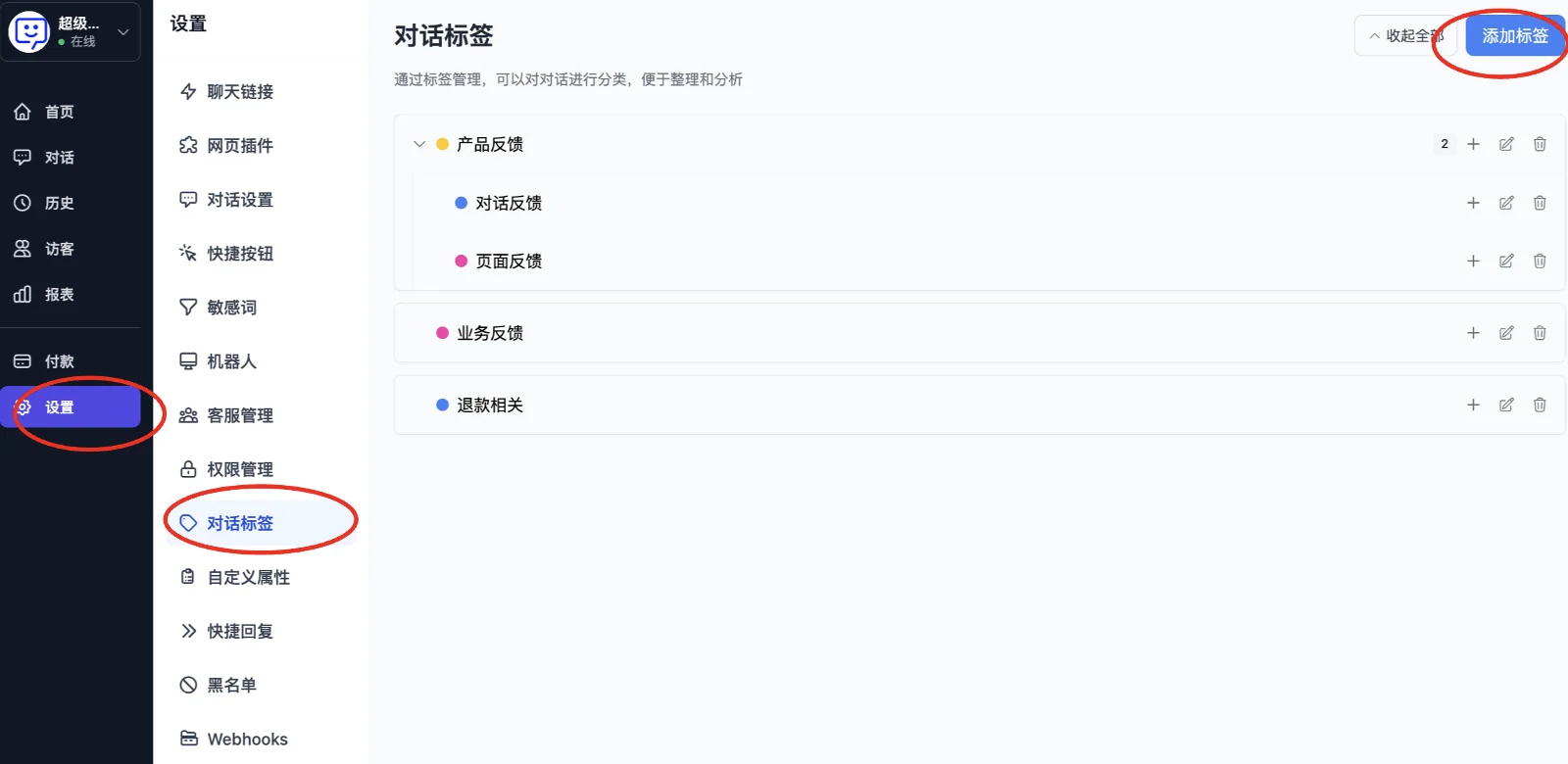
- Click "Settings" at the bottom of the left navigation bar, then select "Conversation Tags". You can then start adding conversation tags.
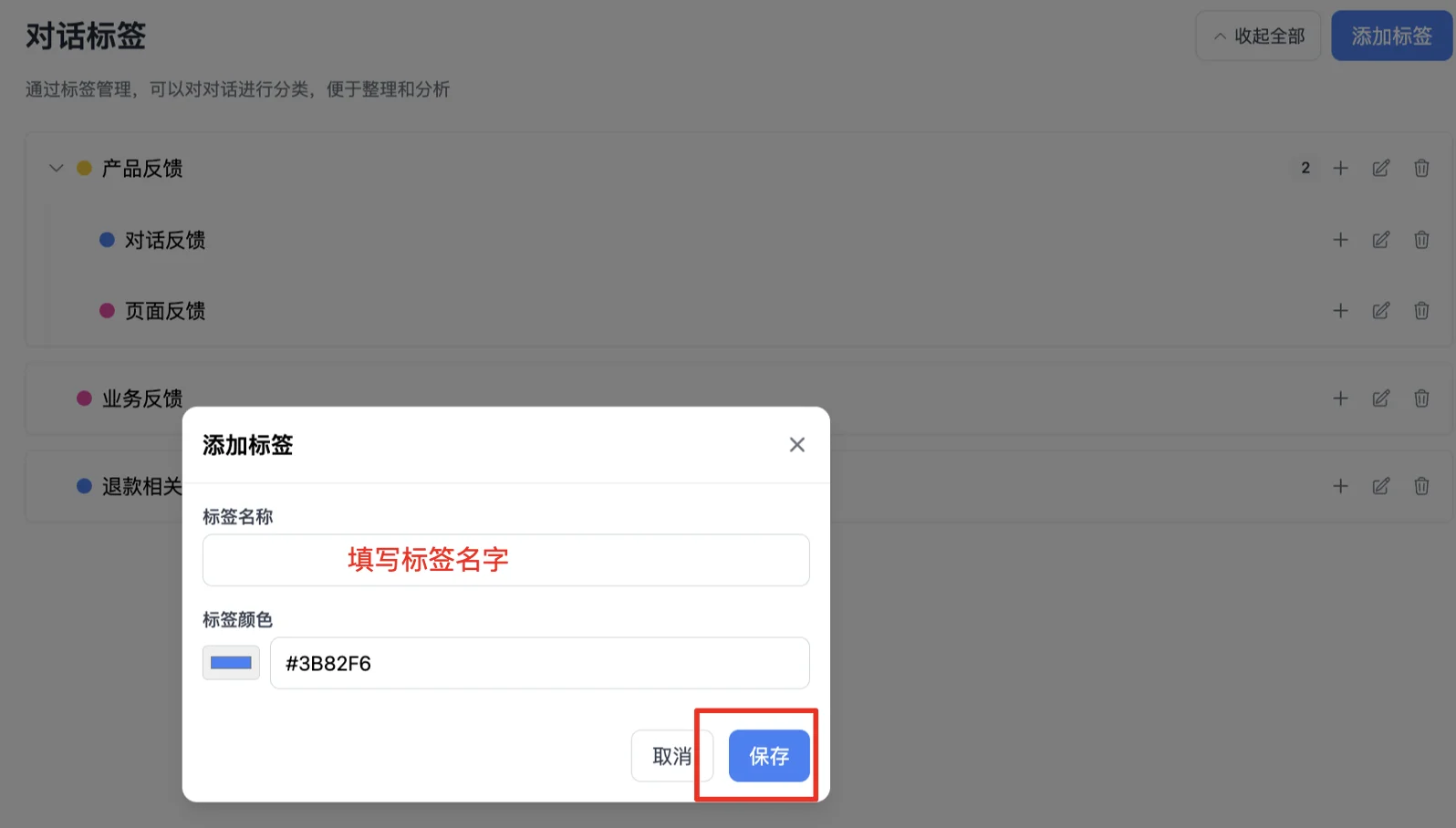
- After clicking "Add Tag", you can set the tag name and color in the popup.
- How to Use Conversation Tags
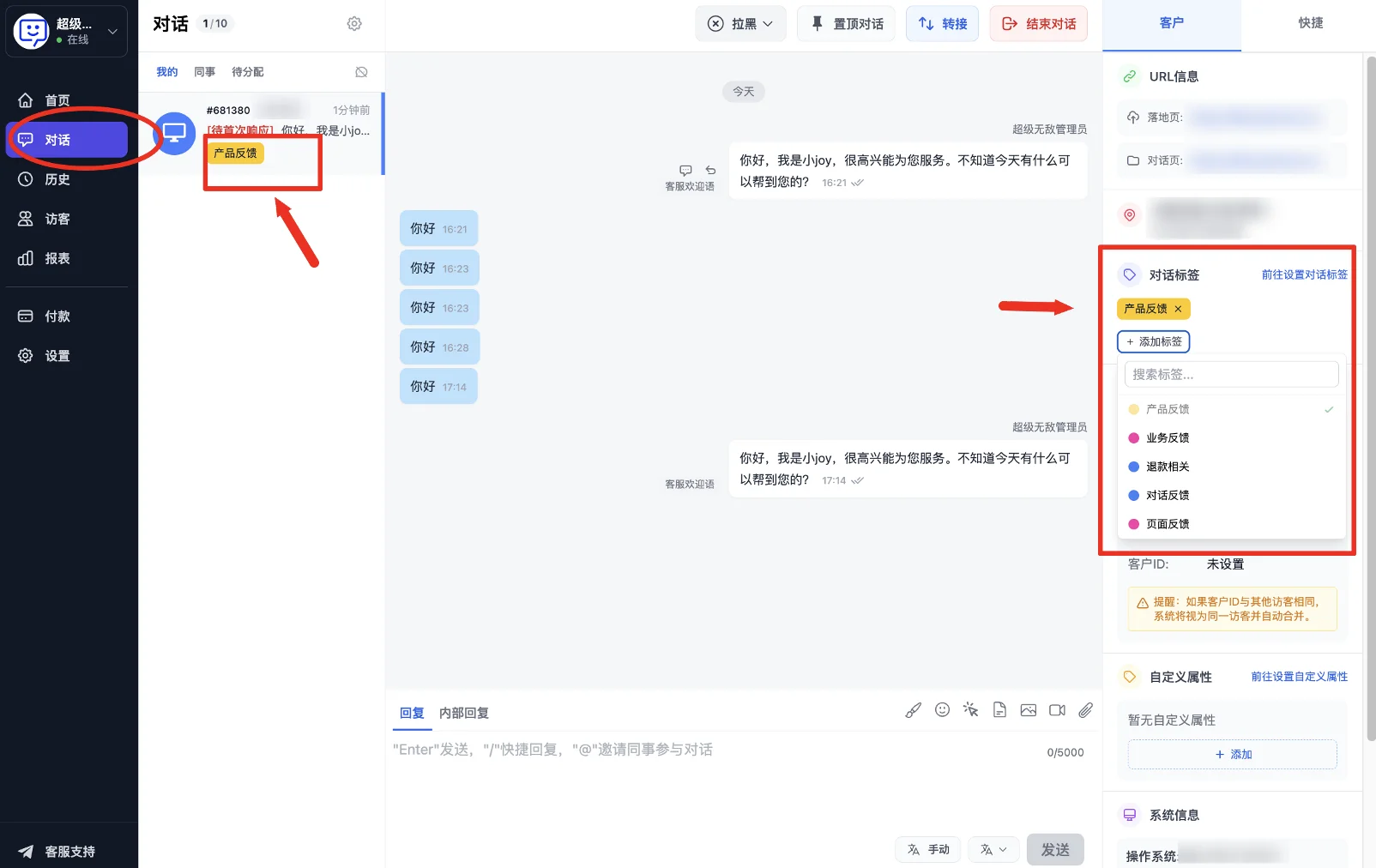
- How to tag: Simply open a conversation and select the desired tag from "Conversation Tags" on the right side of the conversation panel.
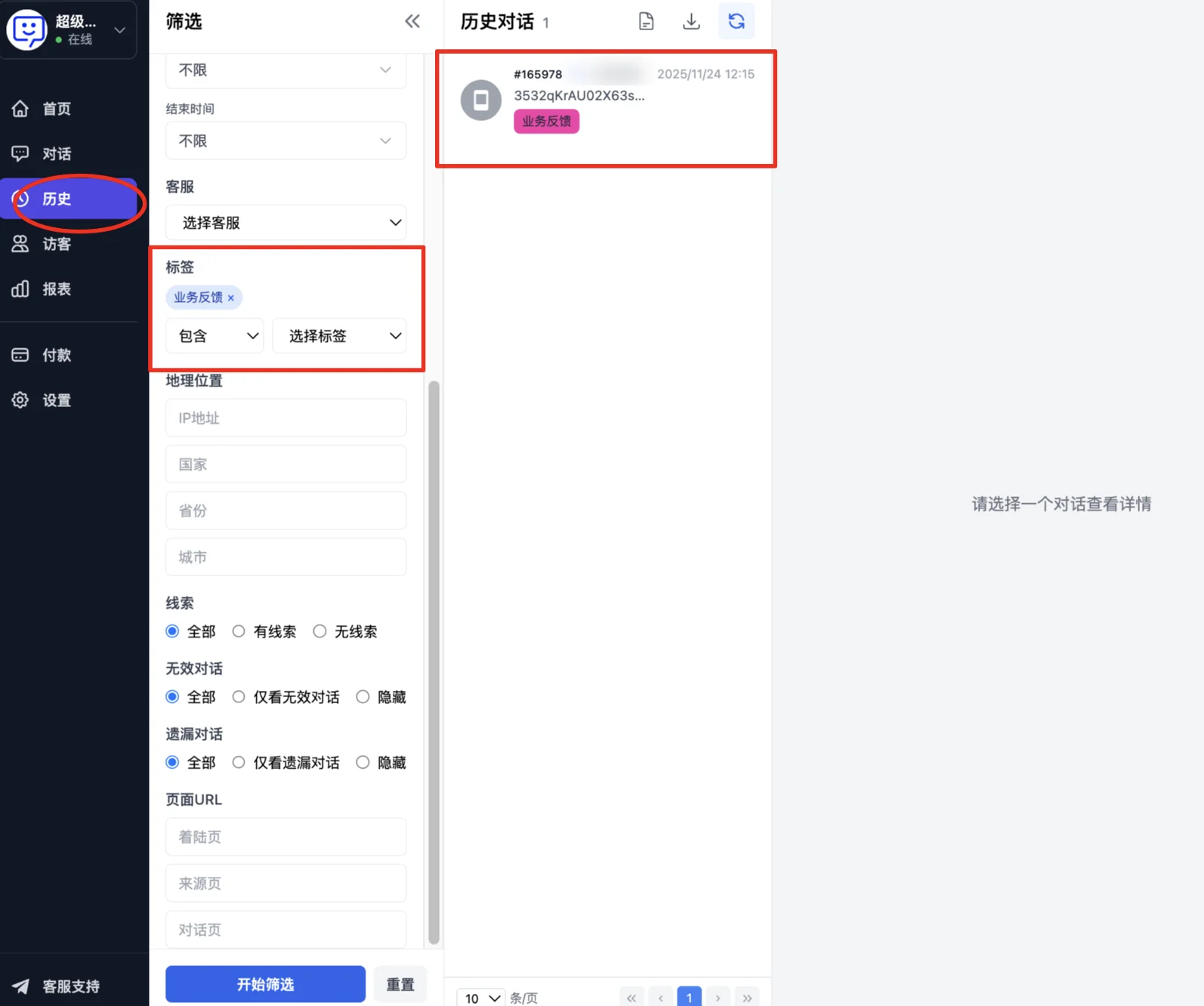
- How to find conversations with the same tag in history: Go to "History", filter by "Tag", and click "Start Filtering". Conversations with that tag will appear on the right side. You can download and export the results for further analysis.
Congratulations! You've completed the "Conversation Tags" feature module!
By setting up conversation tags, all conversations can be broadly categorized or tagged on the fly. Operations and agents can more efficiently analyze conversation quality and improve service levels.
Next step: Visit other Advanced Features to explore how to further unlock QIABOT's potential and make the most of every feature to enhance your workflow.